
What it is for
Brainstack Menu is the macOS control surface for people who run Brainstack day to day. It keeps the important state visible without making you remember every brainctl command.
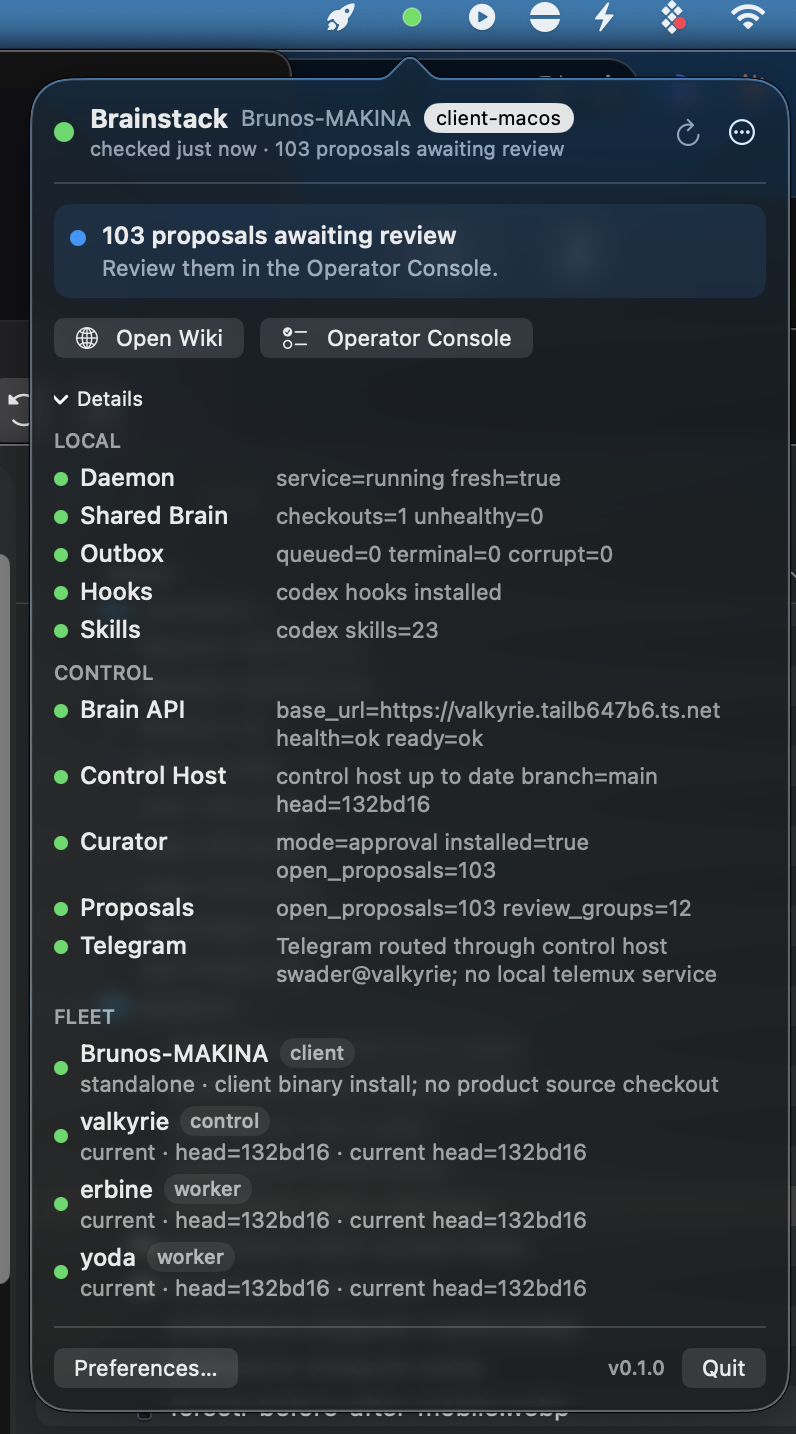
Use it when you want to answer practical questions quickly:
- Is this Mac connected to the shared brain?
- Are hooks and skills installed?
- Are proposals waiting for review?
- Is Telegram routed through a control host?
- Are the control host and workers up to date?
What the colors mean
- Green means the checked path is healthy.
- Yellow means Brainstack is usable, but something needs attention.
- Red means a required local or control path failed.
- Gray means the feature is disabled or not relevant on this machine.
Yellow should explain the next useful action. For example, an out-of-date worker should show that it needs an update, and the app should offer the update action where it is safe to do so.
The app also cross-checks redundant health signals. If one low-level control-host check hiccups but the fleet view already confirms that the control host is reachable and current, Brainstack keeps the main status calm and shows the probe detail only where it helps diagnosis.
Common actions
- Open Wiki: jump to the shared-brain wiki.
- Operator Console: review and apply proposals.
- Repair Hooks: reinstall fail-open harness integration.
- Refresh Skills: pull shared skills into the local harness skill folder.
- Update Machine: update a stale control host or worker when Brainstack can safely reach it.
- Capabilities: show installed or missing bundled capabilities, then route installs to the canonical
brainctl capabilitieslifecycle.
The app is a convenience surface. If it cannot connect, your CLI and harnesses should still fail open: Brainstack being unavailable should not block normal Codex, Claude, Cursor, or terminal work.
When Telegram is involved
If telemux is configured on a control host, the Mac app should describe that route clearly. A Mac client does not need a local Telegram service to show that Telegram works through the control host.
You can still use Telegram as a control surface for the same kinds of actions. For example:
install voice on worker-a
/updates
/proposals pending
Brainstack should route those through the connected control host and explain what it did.